Topics in Learn Me AI let you add content from various sources—PDF files, text documents, web URLs, and even YouTube videos. This guide shows you how to use the Topics feature to expand your knowledge.
What Are Topics?
Topics are individual pieces of content you can create from:
- PDF files – Upload PDF documents
- Text files – Upload TXT, MD, or Markdown files
- URLs – Import content from web pages
- Videos – Extract content from YouTube videos
And this contend can be analyzed by your bots.
Accessing Topics
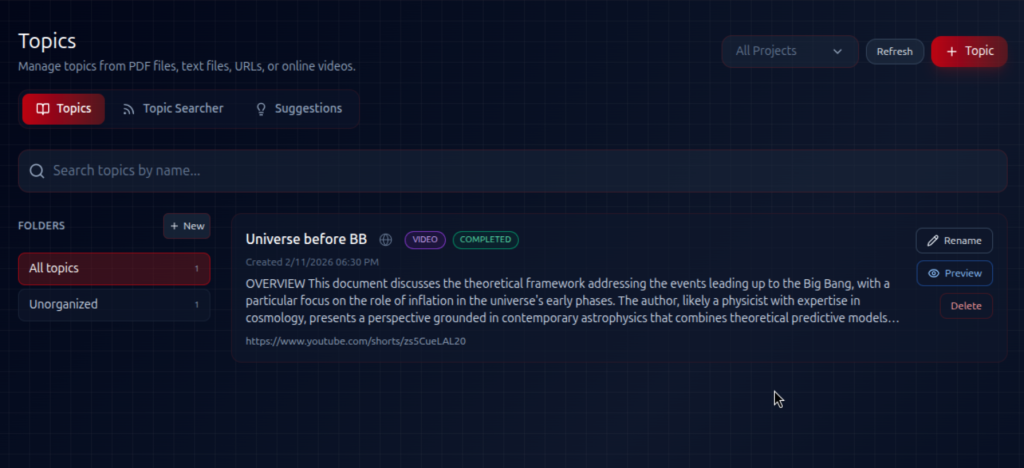
- Click “Topics” in the left sidebar
- You’ll see three tabs:
- Topics – Your created topics
- Topic Searcher – Search jobs for finding content
- Suggestions – AI-suggested topics
Creating Topics
Creating a PDF Topic
- Click “New Topic”
- Enter a name for your topic
- Select “PDF File” as the type
- Either:
- Upload a PDF file from your computer, or
- Enter a URL to a PDF file online
- Click “Create”
Creating a Text Topic
- Click “New Topic”
- Enter a name
- Select “Text File” as the type
- Upload your text file (.txt, .md, or .markdown)
- Click “Create”
Creating a URL Topic
- Click “New Topic”
- Enter a name
- Select “URL” as the type
- Enter the web page URL
- Click “Create”
The system will fetch and extract the content from the web page.
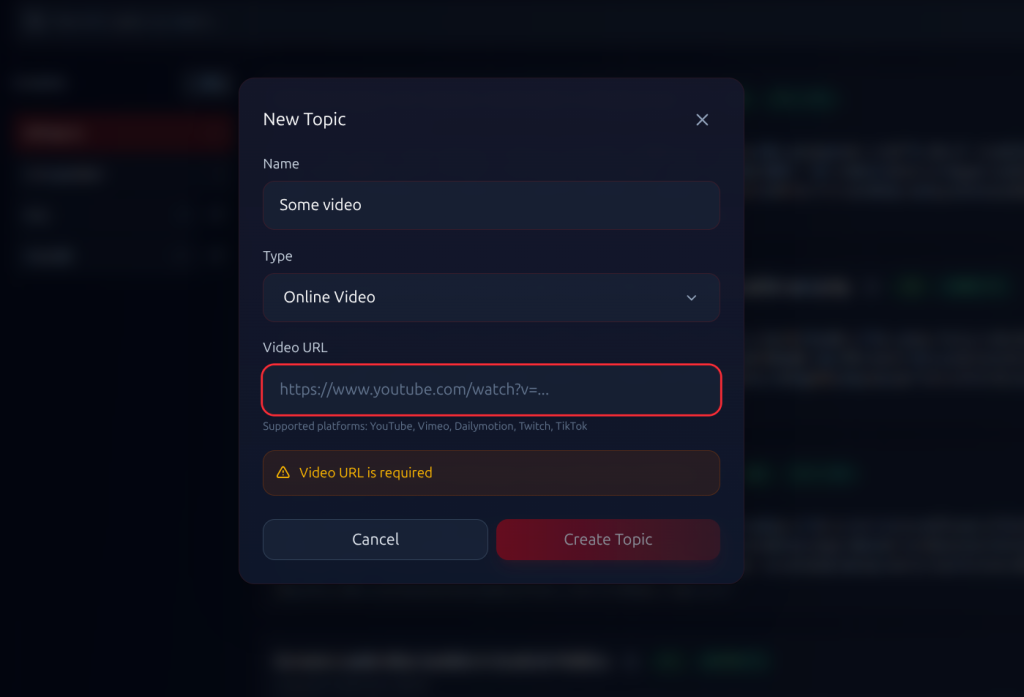
Creating a Video Topic
- Click “New Topic”
- Enter a name
- Select “Video” as the type
- Paste the YouTube video URL
- Click “Create”
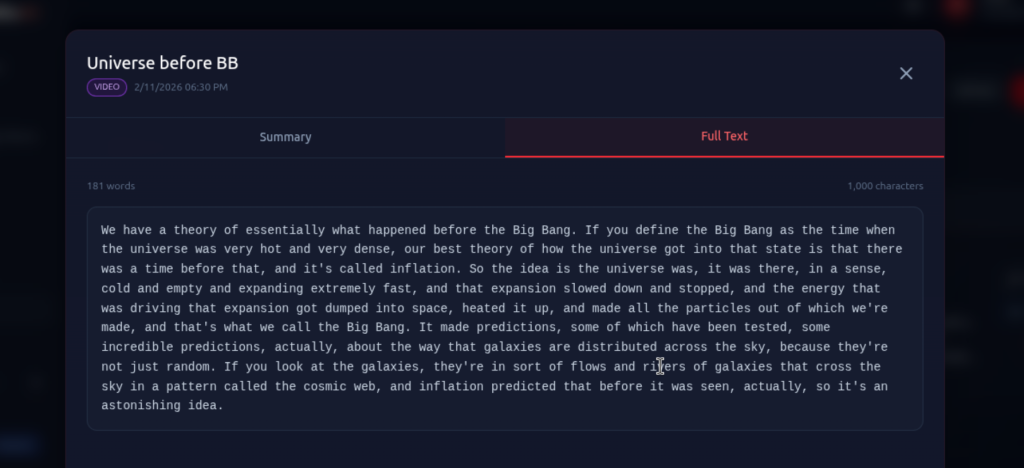
The system will extract the video transcript.
Topic Searcher
The Topic Searcher helps you automatically find and add relevant content.
Here you can see how to work with Topic Searcher
Managing Topics
Filtering Topics
On the Topics page, you can:
- Filter by project
- Search topics by name
- Refresh the list
Topic Status
Topics show their processing status:
- Processing – Content is being extracted
- Ready – Available for use
- Error – Something went wrong
Best Practices
Use Descriptive Names
Give topics clear names so you can find them later:
- “Q3 Sales Report 2024”
- “Product Launch Announcement”
- “Python Tutorial – Basics”
Organize by Project
Keep related topics in the same project for better organization.
Check Video Transcripts
For video topics, the quality depends on available captions. Videos with good captions work best.
Verify URL Content
Some websites may block content extraction. If a URL topic fails, the site may have restrictions.
Example Use Cases
Research Project
- Create topics from academic papers (PDFs)
- Add relevant articles (URLs)
- Include video lectures (Videos)
- Chat with all your research materials
Training Materials
- Upload training documents (PDFs/Text)
- Add tutorial videos (Videos)
- Include reference articles (URLs)
- Create a bot to help with training questions
News Monitoring
- Set up search jobs for topics you follow
- Review suggestions for relevant content
- Build a knowledge base of industry news
Common Questions
Q: What video platforms are supported?
A: YouTube for now
Q: Is there a file size limit?
A: Files can be up to 50MB.
Q: How long does processing take?
A: Most topics process within a few minutes. Videos may take longer.
Q: Can I edit a topic after creation?
A: You can manage topics from the Topics page, including viewing details and deleting.