Stay on top of new content without manually checking websites. Learn Me AI’s Topic Searcher lets you monitor RSS feeds and automatically discover articles that match your interests using AI.
What is RSS Feed Monitoring?
RSS (Really Simple Syndication) feeds are a standard way websites publish updates. Many blogs, news sites, and publications offer RSS feeds that list their latest articles.
Learn Me AI can:
- Monitor any RSS feed on a schedule
- Use AI to check if new articles match your criteria
- Create suggestions for content you might want to add
- Optionally auto-create topics from matching content
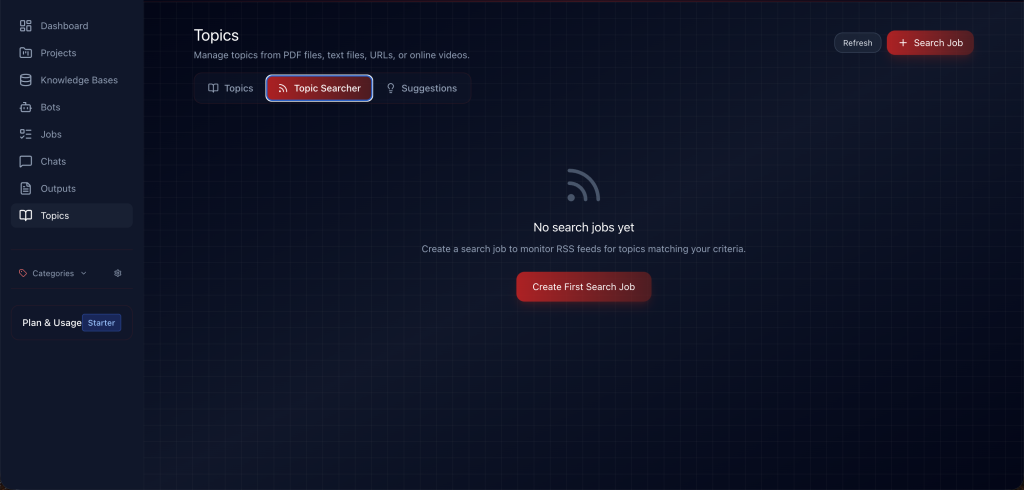
Accessing Topic Searcher
- Click “Topics” in the left sidebar
- Click the “Topic Searcher” tab
- You’ll see your existing search jobs (if any)
Creating a Search Job
Step 1: Click “New Search Job”
Click the button to open the search job creation form.
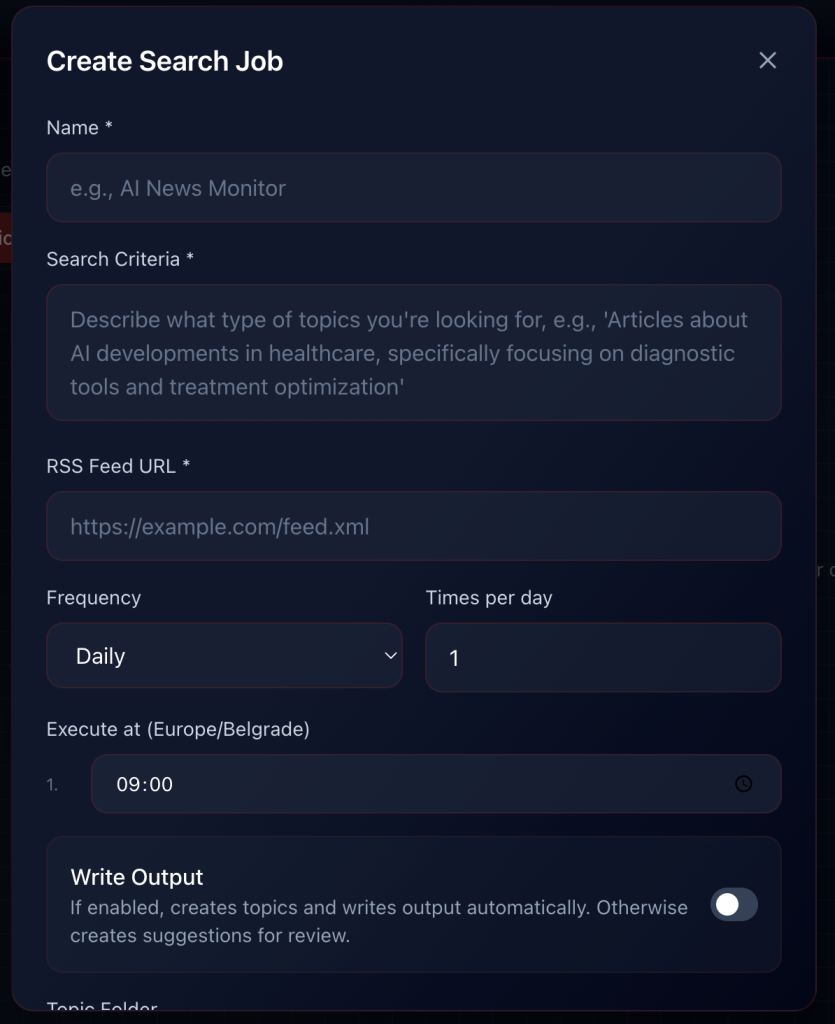
Step 2: Fill in the Details
Name (Required)
Give your search job a descriptive name:
- “AI News Monitor”
- “Industry Updates”
- “Tech Blog Tracker”
Search Criteria (Required)
Describe what type of content you’re looking for. Be specific so the AI can accurately match articles:
Good examples:
- “Articles about AI developments in healthcare, specifically focusing on diagnostic tools and treatment optimization”
- “News about Python programming language updates, new libraries, and best practices”
- “Content related to startup funding, venture capital, and entrepreneurship”
RSS Feed URL (Required)
Enter the RSS feed URL you want to monitor:
https://example.com/feed.xmlhttps://blog.example.com/rsshttps://news.site.com/feed
Most websites have an RSS feed – look for an RSS icon or check /feed, /rss, or /feed.xml paths.
Step 3: Set the Schedule
Frequency
Choose how often to check the feed:
- Daily – Check once or more per day
- Weekly – Check on specific days of the week
Times per Period
Set how many times to check within your chosen frequency.
Execute At
Choose specific times when the search job should run. Times are shown in your local timezone.
For daily schedules:
- Set one or more times (e.g., 9:00 AM, 6:00 PM)
For weekly schedules:
- Choose the day of the week and time for each check
Step 4: Choose Output Mode
Write Output Toggle
- OFF (Default): Matching articles become “Suggestions” for you to review and approve manually
- ON: Matching articles automatically create topics without review
For most users, we recommend keeping this OFF so you can review suggestions before adding them to your outputs.
Bot Executor (if Write Output is ON)
Select a bot that will process the matched content automatically based on assigned knowledge base.
Step 5: Create
Click “Create Search Job” to start monitoring.
Managing Search Jobs
Viewing Search Jobs
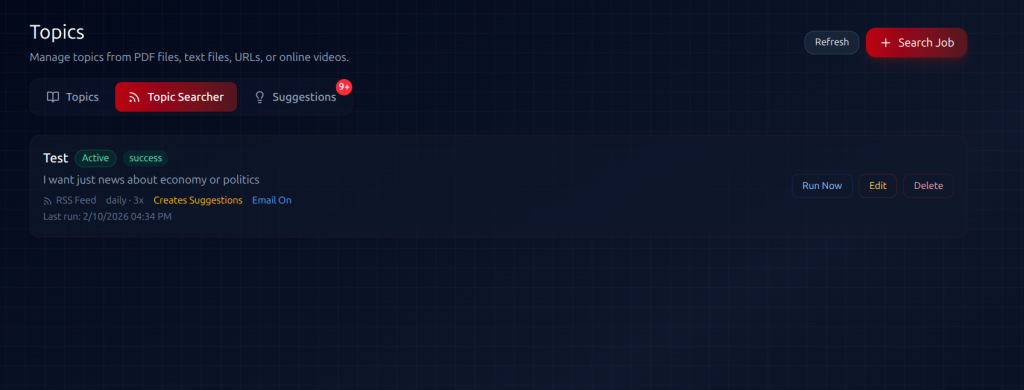
The Topic Searcher tab shows all your search jobs with:
- Job name and RSS feed URL
- Frequency and schedule
- Status (active/paused)
- Last run time and results
Editing a Search Job
- Find the search job in the list
- Click the edit button
- Modify settings as needed
- Save changes
Pausing/Resuming Jobs
You can pause a search job temporarily without deleting it, then resume when ready.
Running Manually
Click the run button to execute a search job immediately instead of waiting for the next scheduled time.
Deleting a Search Job
Remove search jobs you no longer need. This stops monitoring but doesn’t affect topics already created.
Reviewing Suggestions
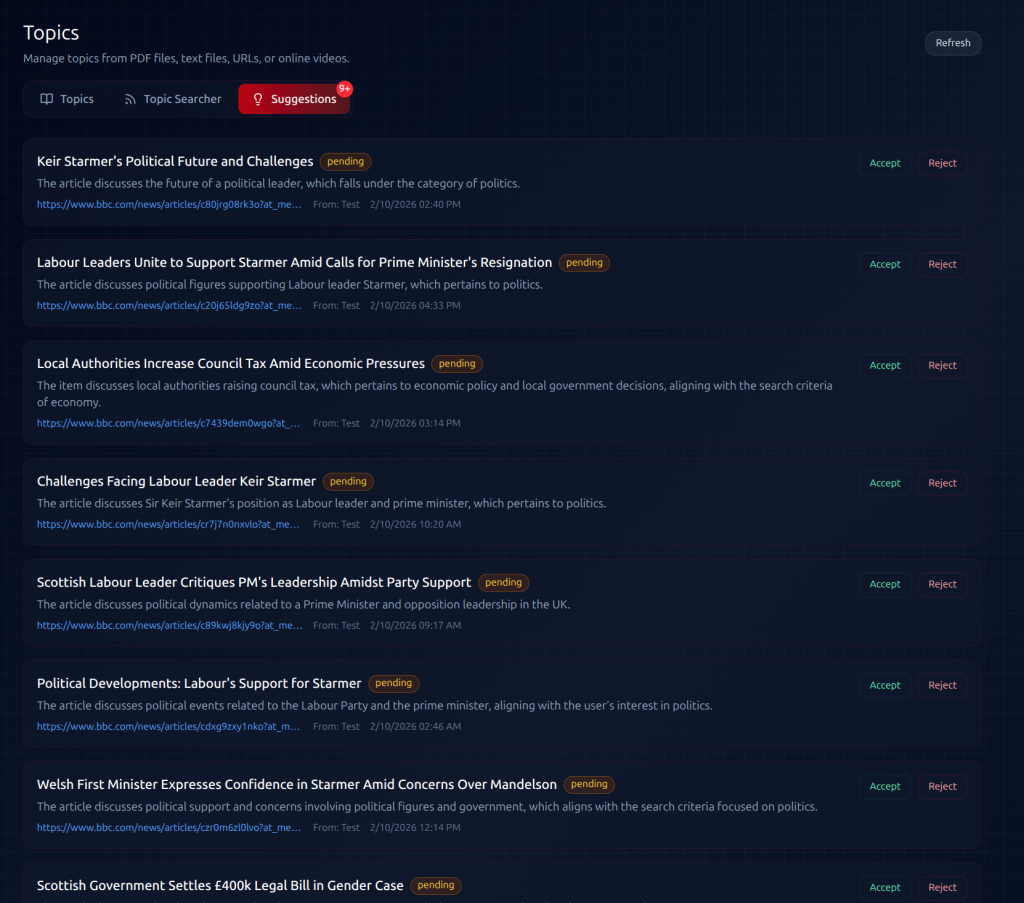
When search jobs find matching content (with Write Output OFF):
- Go to the “Suggestions” tab in Topics
- You’ll see a badge showing pending suggestions
- Review each suggestion:
- Accept – Create a topic from this content
- Dismiss – Skip this suggestion
Suggestions show:
- Article title
- Source URL
- Why it matched your criteria
- Publication date
Example Use Cases
Industry News Monitoring
Search Job: “Fintech News”
RSS Feed: TechCrunch, Fintech Times, or industry blog
Criteria: “News about financial technology, banking innovation, payment systems, and cryptocurrency regulations”
Schedule: Daily at 8:00 AM
Research Updates
Search Job: “Machine Learning Papers”
RSS Feed: ArXiv ML feed or research blog
Criteria: “Research papers and articles about natural language processing, transformer models, and large language models”
Schedule: Weekly on Monday and Thursday
Competitor Monitoring
Search Job: “Competitor Blog”
RSS Feed: Competitor’s blog RSS
Criteria: “Product announcements, feature updates, and company news”
Schedule: Daily at 9:00 AM and 5:00 PM
Learning Resources
Search Job: “Python Tutorials”
RSS Feed: Real Python, Python.org blog
Criteria: “Beginner-friendly Python tutorials, code examples, and best practices guides”
Schedule: Weekly on weekends
Finding RSS Feeds
Not sure where to find RSS feeds? Try these methods:
- Look for RSS icon – Many sites display an orange RSS icon
- Check common paths:
/feed/rss/feed.xml/rss.xml/atom.xml
- View page source – Search for “rss” or “feed” in the HTML
- Use RSS discovery tools – Search “[website name] RSS feed”
Tips for Better Results
Be Specific with Criteria
Vague criteria = too many irrelevant matches
Specific criteria = focused, relevant suggestions
❌ “Technology news”
✅ “News about cloud computing services, specifically AWS, Azure, and Google Cloud updates”
Start with One Feed
Test with a single RSS feed first. Once you’re happy with the results, add more search jobs for other feeds.
Review Regularly
Check the Suggestions tab regularly to:
- Accept valuable content
- Dismiss irrelevant suggestions
- Refine your search criteria if needed
Adjust Frequency
- High-volume feeds (news sites): Check multiple times daily
- Low-volume feeds (personal blogs): Weekly is enough
Common Questions
Q: How many search jobs can I create?
A: This depends on your plan. Check your account settings for limits.
Q: What if the RSS feed is invalid?
A: You’ll see an error message. Verify the URL is correct and the feed is accessible.
Q: Can I monitor multiple RSS feeds with one job?
A: Each search job monitors one RSS feed. Create multiple jobs for multiple feeds.
Q: How far back does it check?
A: Only new items since the last check are processed. It won’t import old articles.
Q: What if no items match?
A: That’s normal! The job runs successfully but creates no suggestions if nothing matches your criteria.